
You send an important email and the recipient never sees it, because it landed in spam. One of the most common causes is missing or broken email authentication: the SPF, DKIM and DMARC records that prove to Gmail, Yahoo and Outlook that your mail really comes from you.
SPF lists the servers allowed to send for your domain. DKIM signs each message so receivers can confirm nobody changed it. DMARC checks that at least one of the two matches the domain in your From address, tells receivers what to do when it doesn't, and sends you reports. Bulk senders to Gmail, Yahoo and Outlook.com must have all three. Gmail began rejecting non-compliant mail in November 2025, and Outlook.com sends it to junk.
This guide walks you through every step in plain language. By the end you'll have all three records live on your domain and you'll know how to check they're working.
What SPF, DKIM and DMARC Do
These three records work as a team. Each one answers a different question a receiving mail server asks about your message.
SPF, or Sender Policy Framework, is a list you publish in your DNS of the servers and services authorised to send email for your domain. When a mail server receives a message, it checks the sending server against that list. If the server is on it, SPF passes. If not, it fails. One detail matters later: SPF checks the domain in the message's Return-Path (the hidden bounce address), not the From address your recipients see.
DKIM, or DomainKeys Identified Mail, adds a cryptographic signature to every email you send. The receiving server looks up a public key you've published in DNS and uses it to confirm the signature is genuine and that nobody altered the message in transit. It works like a tamper-evident seal on a letter, and the seal names the domain that applied it.
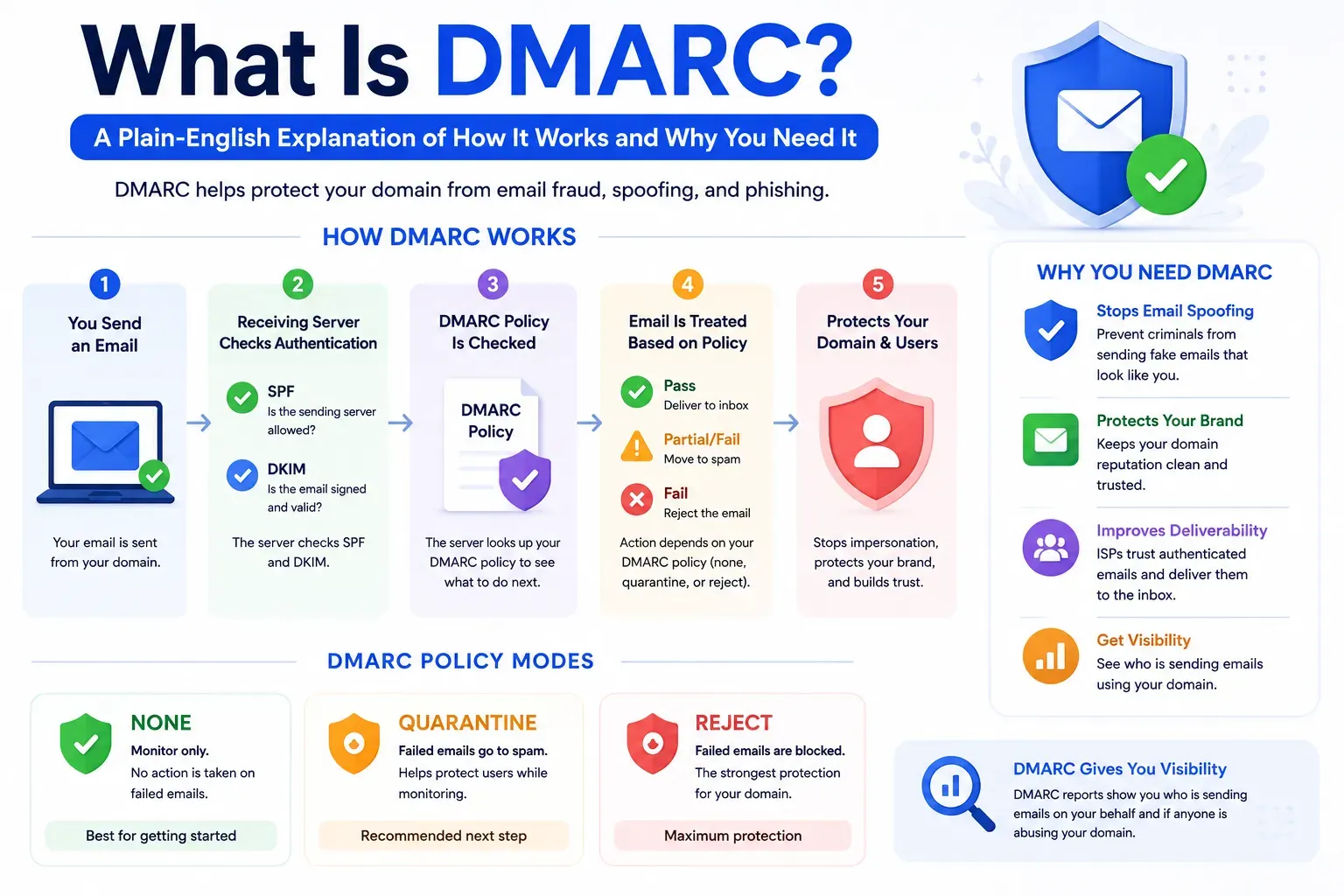
DMARC, or Domain-based Message Authentication, Reporting and Conformance, ties SPF and DKIM together. It tells receiving servers what to do when an email fails, and it sends you reports so you can see who's sending email from your domain, including anyone trying to impersonate you.
Alignment: Why Passing SPF or DKIM Isn't Always Enough
DMARC doesn't only ask whether SPF or DKIM passed. It asks whether the domain that passed matches the domain in your From address. This is called alignment, and it's a very common reason DMARC fails on a domain where SPF and DKIM both look fine.
A typical example: a marketing platform sends your newsletter from news@yourdomain.com, but uses its own bounce address and signs with its own DKIM domain. SPF passes for the platform's domain. DKIM passes for the platform's domain. Neither matches yourdomain.com, so DMARC fails.
The fix is to set up each platform's domain authentication so it signs with DKIM as your domain and, where the platform supports it, uses a bounce address on your domain. DMARC needs only one of the two to pass and align. Google's sender guidelines FAQ requires the From domain to align with either SPF or DKIM, and recommends aligning both.
Who Requires SPF, DKIM and DMARC in 2026
Google and Yahoo introduced these rules in February 2024. Google's sender guidelines FAQ says Gmail began ramping up enforcement in November 2025, with temporary and permanent rejections for mail that doesn't comply. Microsoft started enforcing its rules on May 5, 2025. Mail that fails goes to the Junk folder and can be rejected with the error 550 5.7.515 if the problem isn't fixed.
Even if you send fewer emails than that, set up all three. Authentication helps your inbox placement, and DMARC is what stops other people sending email that claims to come from your domain.
Before You Start: List Everything That Sends as Your Domain
Most authentication problems come from a sending tool nobody remembered. Before you touch DNS, write down every service that sends email using your domain: your mailbox provider (Google Workspace or Microsoft 365), your marketing platform, CRM, sales outreach tools, helpdesk, billing or invoicing system, website forms, and any product or transactional email service.
For each one, open its help docs and find its domain authentication instructions. They tell you exactly which SPF include, DKIM records and bounce domain it needs. You'll use this list in every step below.
You also need access to your DNS provider. This is usually where you registered your domain, such as GoDaddy, Namecheap, Cloudflare or Squarespace, and you need permission to add and edit TXT and CNAME records. If those record types are new to you, this guide to email DNS records covers the basics.
Step 1: Set Up Your SPF Record
Check for an Existing SPF Record
Your domain can only have one SPF record, so check first. Enter your domain in the MXToolbox SPF Checker. If a record exists, you'll edit it. If not, you'll create one from scratch.
Write Your SPF Record
Every SPF record starts with v=spf1, lists the services authorised to send for your domain, and ends with an all rule. If Google Workspace is your only sender, the record looks like this:
v=spf1 include:_spf.google.com ~all
For Microsoft 365, Microsoft's SPF setup guide gives this record:
v=spf1 include:spf.protection.outlook.com -all
To add another service, put its include before the all rule. In this example, spf.example-platform.com is a placeholder for whatever your platform's docs give you:
v=spf1 include:_spf.google.com include:spf.example-platform.com ~all
Only add an include when a platform's own setup instructions ask for one. Many marketing platforms send with their own bounce domain, so SPF is checked against their domain, not yours. Mailchimp's domain authentication guide, for example, asks for two DKIM CNAME records and a DMARC record, with no SPF change. An include you don't need just uses up a DNS lookup.
Choose ~all or -all
The rule at the end tells receivers what to do with mail from servers that aren't on your list:
~all(soft fail) tells servers to treat unrecognised senders with suspicion but not reject them outright. It's the right setting while you're still confirming every sender.-all(hard fail) says unlisted senders aren't authorised. Microsoft recommends it once DKIM and DMARC are in place, because DMARC then decides what happens to failing mail.+allauthorises every server on the internet. Never use it.
Stay Under 10 DNS Lookups
SPF allows at most 10 DNS lookups per check. Go over and SPF returns a PermError, which counts as a failure for every message. The parts that cost a lookup are include, a, mx, exists, redirect and the outdated ptr. IP addresses listed with ip4 or ip6 don't.
The catch is nesting. An include that points to a record with three more includes costs four lookups, not one, as Microsoft's SPF documentation explains. As of October 2026, Google's _spf.google.com costs a single lookup because it lists IP ranges directly. Other services can cost several. An SPF checker shows your real total.
If you're over the limit, remove includes you don't need, or move a sending tool to its own subdomain, which gets its own 10-lookup budget. You can also replace an include with the service's published IP ranges. That's called SPF flattening, and it needs upkeep: if the service changes its IPs, your record goes stale.
Add the SPF Record to Your DNS
- Log into your DNS provider dashboard
- Open DNS management for your domain
- Add a new TXT record, or edit your existing SPF record
- Set the host or name field to
@(your root domain) - Paste your SPF value into the content or value field
- Save the record
Most DNS changes are live within minutes to a few hours, depending on the record's TTL (how long DNS servers cache it). Allow up to 48 hours before assuming something's wrong.
Step 2: Set Up Your DKIM Record
DKIM uses a private and public key pair, and your email provider generates both. The private key stays with the provider and signs every outgoing message. The public key goes into your DNS.
Generate the Key in Your Email Provider
The process varies by provider:
- Google Workspace: in the Admin console, go to Apps, then Google Workspace, then Gmail, then Authenticate email. Google gives you a TXT record to publish.
- Microsoft 365: in the Defender portal, go to Email & collaboration, then Policies & rules, then Threat policies, then Email authentication settings, and open the DKIM tab. Microsoft gives you two CNAME records (Microsoft's DKIM guide).
- Marketing, sales and helpdesk platforms: look for "domain authentication" or "sender authentication" in the settings. Most give you CNAME records.
Publish the DKIM Record
DKIM records live on a subdomain built from a selector name, in this format:
selector._domainkey.yourdomain.com
The selector is a name your provider chooses, such as google or selector1. Depending on the provider, you'll add one of two record types:
- TXT record: you paste the public key itself. Google Workspace works this way.
- CNAME record: you point the selector at a key the provider hosts. Microsoft 365 uses two,
selector1._domainkeyandselector2._domainkey, so it can rotate keys without you editing DNS. Most marketing platforms work the same way.
Copy the host and value exactly as your provider shows them. Some DNS providers add your domain to the host automatically, so typing the full selector._domainkey.yourdomain.com can leave you with your domain in it twice. If you get a choice of key length, use 2048-bit. It's much harder to break than the older 1024-bit standard. A 2048-bit key is longer than the 255 characters one DNS text string can hold. Most DNS providers split it for you, but if yours rejects the value, split it into quoted chunks as your provider's docs describe.
Turn Signing On
Publishing the record isn't always the last step. Google Workspace and Microsoft 365 both need you to go back once DNS has updated and switch signing on: Start authentication in Google, or the signing toggle on the DKIM tab in Microsoft. Until you do, your mail goes out without your DKIM signature.
Multiple Sending Tools
Each platform that sends as your domain needs its own DKIM record. A domain can have many DKIM records as long as each uses a different selector, so they don't conflict. This is also how you fix most alignment problems: a platform that signs with DKIM as your domain passes DMARC even when its bounce address is on its own domain.
Step 3: Set Up Your DMARC Record
With SPF and DKIM in place, add DMARC. It's a TXT record at this exact location in your DNS:
_dmarc.yourdomain.com
In most DNS dashboards you enter just _dmarc as the host. You don't need to wait for SPF and DKIM to finish propagating first. A monitoring policy takes no action on your mail, so it's safe to publish right away.
Start With Monitoring Mode
Don't start with a strict policy. Begin with p=none, which tells receiving servers to take no action on failed emails but to send you reports about what they're seeing. A safe starting record looks like this:
v=DMARC1; p=none; rua=mailto:dmarc-reports@yourdomain.com
The rua tag tells servers where to send aggregate reports. These are XML files, usually daily, listing every server that sent mail as your domain and whether it passed. They're hard to read raw, so most people send them to a DMARC reporting tool. Our DMARC explainer covers how to read them.
Review the reports for two to four weeks. You're looking for any legitimate sender on your list that's failing SPF or DKIM alignment. Fix those before you tighten the policy.
DMARC Tags Worth Knowing
In May 2026 the IETF published an updated DMARC standard, RFC 9989, which replaces the original RFC 7489. Records still start with v=DMARC1, so you don't need to rebuild yours. The change you're most likely to notice is that the pct tag, once used to apply a policy to a percentage of mail, has been removed. The t=y flag takes over its main use: testing a stricter policy before it takes full effect. Receivers may take time to support the new tags, so treat them as extras, not the core of your record.
Tighten the Policy Step by Step
Move one step at a time and keep reading reports after each change. A tool someone adds next quarter will show up there first.
Subdomains and Domains You Don't Send From
Your DMARC policy covers your subdomains too, unless you set sp to something different or a subdomain publishes its own DMARC record. SPF doesn't work that way: each subdomain that sends mail needs its own SPF record.
For domains you own but never send email from, publish records that tell receivers to reject any mail claiming to come from them. Microsoft's SPF guide recommends this record for these parked domains:
v=spf1 -all
Pair it with a DMARC record of v=DMARC1; p=reject at _dmarc on that domain.
How to Verify SPF, DKIM and DMARC Are Working
After publishing all three records, send a test email to a Gmail address you control. Open it, click the three dots, and select Show original. Near the top you'll see the results for SPF, DKIM and DMARC. You want PASS on all three. If any show fail or none, go back to that record and check for typos or missing includes.
Gmail also shows which domain DKIM passed for. If it's your platform's domain rather than yours, and DMARC fails, that's an alignment problem. Go back to that platform's domain authentication settings.
Repeat the test from every tool on your list, not just your main mailbox: your marketing platform, CRM, helpdesk and anything else that sends as your domain. To check individual records:
- SPF check: MXToolbox SPF Checker
- DKIM check: MXToolbox DKIM Lookup
- DMARC check: MXToolbox DMARC Check
For ongoing checks on Gmail traffic, Google Postmaster Tools shows how Gmail sees your domain, including authentication.
Common Mistakes That Break Authentication
- Multiple SPF records: A domain can have only one SPF TXT record. If you have two, SPF fails for all your mail.
- Too many DNS lookups: Every include costs at least one lookup, and nested includes cost more. Going over 10 causes a PermError and breaks SPF entirely.
- Alignment mismatch: SPF and DKIM pass, but for your platform's domain instead of yours, so DMARC fails. Set up custom DKIM for each platform.
- DKIM key not activated: Many providers generate the key but require a separate step to activate signing. Verify that signing is actually enabled.
- Domain doubled in the host field: Typing the full hostname where your DNS provider adds the domain automatically creates a record nobody looks up.
- Jumping straight to p=reject: Starting with the strictest DMARC policy without monitoring first can block your own legitimate emails.
- Not updating records when adding new tools: Every time you add a new email platform or CRM, set up its domain authentication before it sends.
What to Do After Authentication Is Set Up
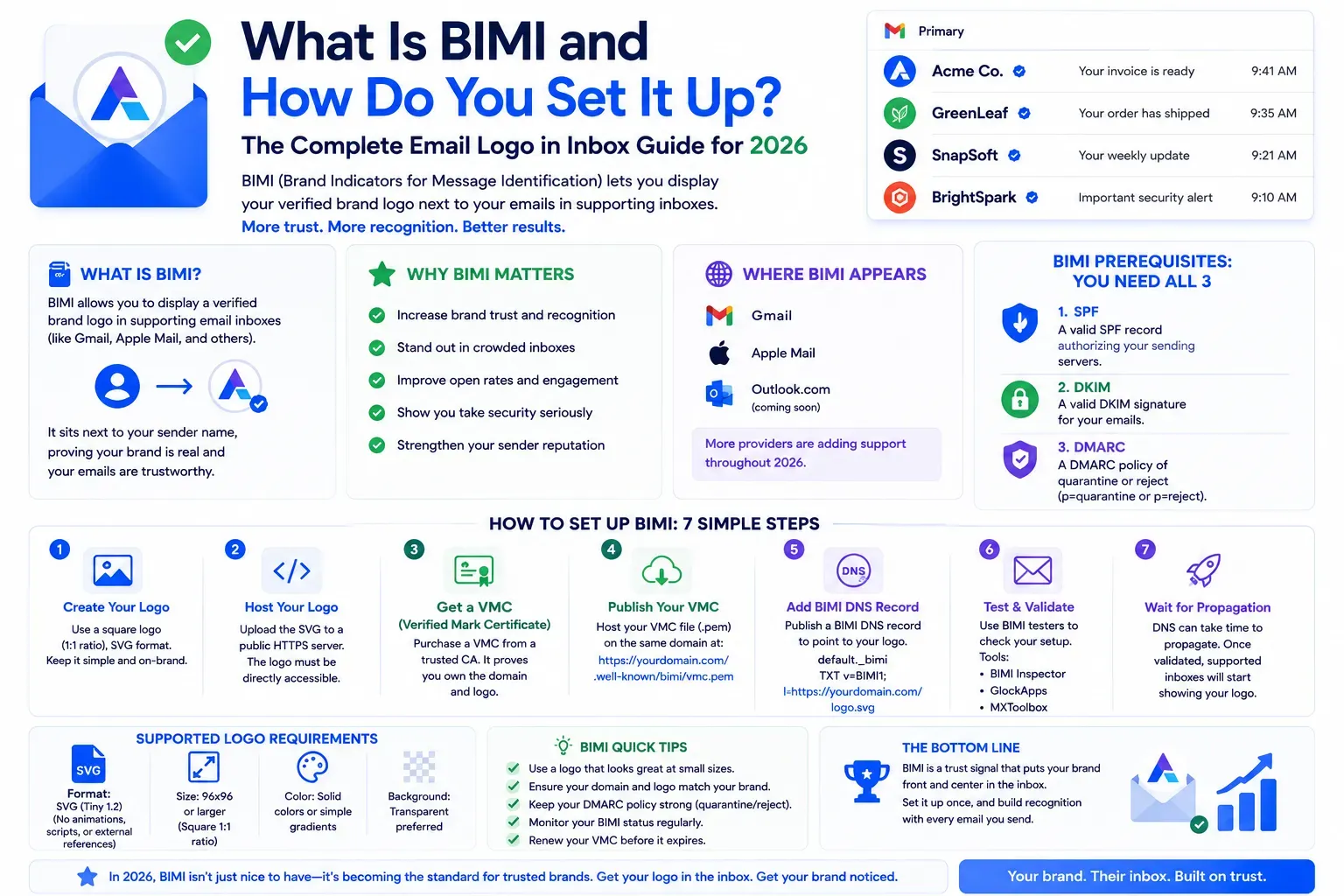
Authentication is your foundation, but it isn't the whole story. Once SPF, DKIM, and DMARC are in place, the next thing to look at is your email sender reputation, which determines where your emails actually land. Once your DMARC policy reaches quarantine or reject, you can also set up BIMI to show your logo next to your emails in supported inboxes.
To see where your emails land right now, run Formula Inbox's free inbox placement test. It shows whether your mail reaches the inbox or spam at Gmail, Outlook, Google Workspace and Microsoft 365, and gives you an early look at your DNS authentication and blocklist status.
For a deeper look at your full sending environment, our email deliverability audit covers authentication, infrastructure, sender reputation, and content analysis in a single engagement with a clear prioritised roadmap to resolve any issues found. To hand the setup off instead, see SPF, DKIM, and DMARC setup pricing.
Frequently Asked Questions
Do I need SPF, DKIM and DMARC if I send fewer than 5,000 emails a day?
Gmail and Yahoo require every sender to have at least SPF or DKIM, and require all three only for bulk senders. Set up all three anyway. Authentication helps your inbox placement, and DMARC is what protects the From address your recipients see from being spoofed.
How long do SPF, DKIM and DMARC records take to work?
Most DNS changes take effect within minutes to a few hours, depending on the record's TTL. Allow up to 48 hours before assuming something's wrong. DKIM can take a little longer to start, because Google Workspace and Microsoft 365 only begin signing after you switch it on once the record is detected.
Can a domain have two SPF records?
No. A domain can have only one SPF record. If there are two, SPF returns a PermError and fails for all your mail. Combine every service into a single record that starts with v=spf1 and ends with one all rule.
Should my SPF record end in ~all or -all?
Use ~all while you're still confirming every service that sends for your domain. Once DKIM and DMARC are in place and your DMARC reports show every legitimate sender passing, -all is the stricter choice, and it's what Microsoft recommends. Never use +all.
What DMARC policy should I start with?
Start with p=none and a rua address so you get reports without affecting delivery. After two to four weeks of clean reports, move to p=quarantine, then to p=reject once you're confident all legitimate mail passes and aligns.