Google Postmaster Tools: The Complete Setup and Usage Guide for Email Senders
Truitt Dill · · Updated
There is a free tool available to every email sender that gives you direct insight into how Gmail perceives your sending domain, including whether your mail meets Gmail's sender requirements, your spam rate as measured by Gmail, and your authentication pass rates. It is called Google Postmaster Tools, and most email marketers have never set it up.
This is one of the most consistently overlooked resources in email deliverability. The data it provides is not an estimate or a third-party approximation. It is Gmail's own data about the mail you send to Gmail users, typically updated within 24 hours. If you are not using it, you are operating your email program without one of the most useful feedback instruments available. This guide shows you exactly how to set it up and what to do with the data once you have access.
What Google Postmaster Tools Shows You
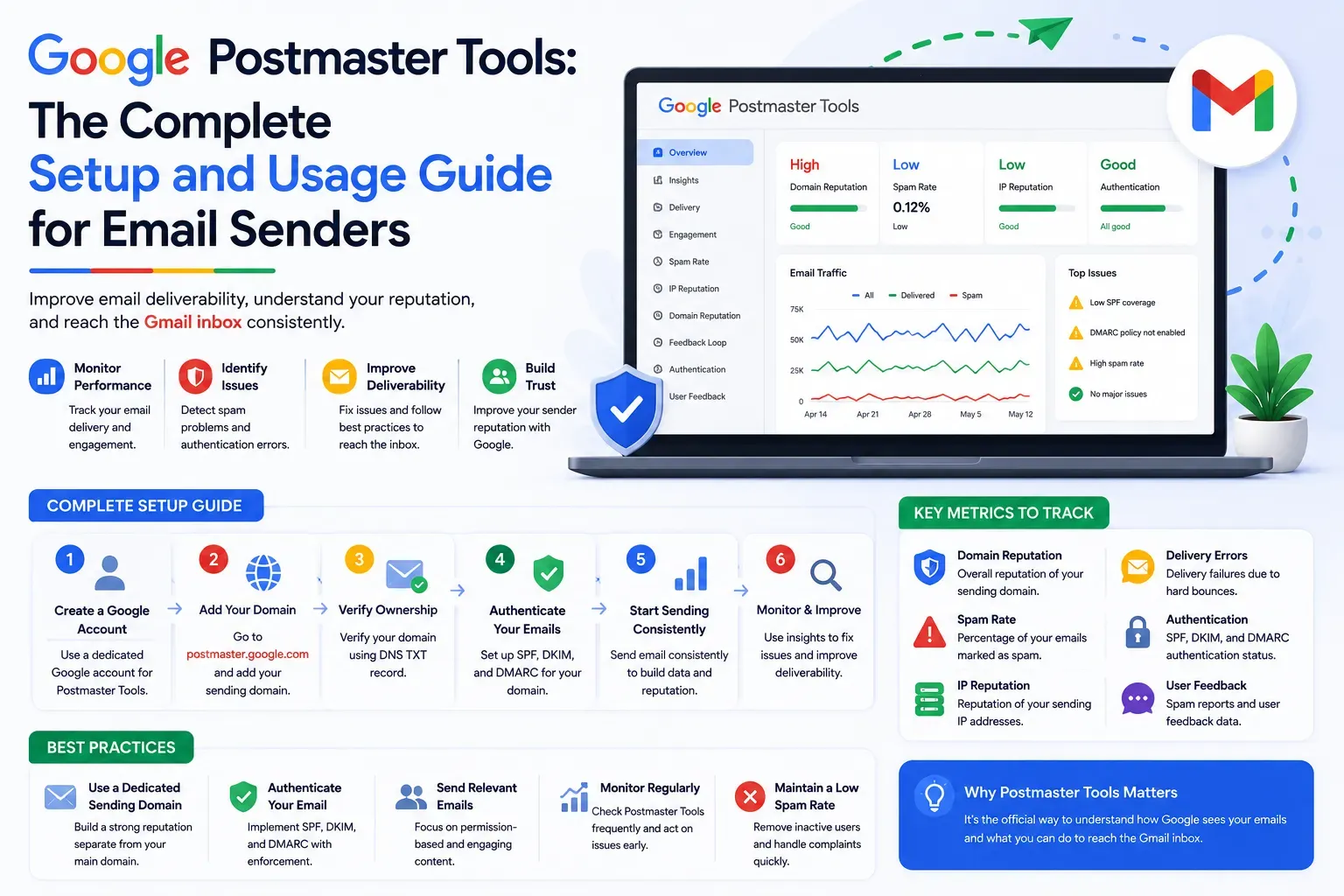
Postmaster Tools reports only on mail sent to personal Gmail accounts, meaning addresses ending in @gmail.com or @googlemail.com. The current version, Postmaster Tools v2, has the dashboards below. Google's guide to the Postmaster Tools dashboards covers each one in detail.
- Compliance status: whether your mail meets Gmail's sender requirements (covered below).
- Spam rate: the share of your inbox-delivered mail that recipients mark as spam.
- Feedback loop: spam rates for campaigns that carry a feedback loop ID.
- Authentication: the share of your mail that passes SPF, DKIM, and DMARC.
- Encryption: the share of your authenticated mail sent over TLS.
- Delivery errors: the share of your authenticated mail that Gmail rejected or temporarily failed.
Dashboard data is not real time. It is typically updated within 24 hours but can take longer, days with low sending volume may show incomplete data, and all times are in UTC.
The Spam Rate dashboard shows the percentage of your messages that recipients mark as spam after Gmail delivers them to the inbox. It is measured on DKIM-authenticated mail. This is the figure Gmail's email sender guidelines are based on: keep your spam rate below 0.10% and never let it reach 0.30% or higher.
A low spam rate is not always good news. If Gmail already sends a large share of your mail to the spam folder, fewer messages reach the inbox for recipients to report, so the rate can look low.
Authentication shows you what percentage of your emails are passing SPF, DKIM, and DMARC checks as seen by Gmail. Google notes that senders with a correct setup typically see DKIM and DMARC pass rates of 95% or higher, while SPF rates tend to be lower, often because of mail sent by third parties. A DKIM or DMARC rate well below that points to a problem in your setup.
The Compliance Status Dashboard
New in Postmaster Tools v2, this dashboard checks your mail against Gmail's sender requirements and marks each one:
- Compliant: your mail meets the requirement. No action is needed.
- Needs work: your mail does not meet the requirement yet. The dashboard describes what to change.
- No data found: Gmail did not receive enough qualifying mail to evaluate the requirement.
Every sender is checked on:
- SPF and DKIM authentication
- DNS records
- Message formatting
- Encryption
- User-reported spam rate
Bulk senders, meaning those who send about 5,000 or more messages to Gmail accounts in a 24-hour period, are also checked on:
- DMARC authentication
- One-click unsubscribe
- Honor-unsubscribe, which can show Needs work if unsubscribe requests are not processed within 48 hours
Status is shown for primary domains only, so mail from email.yourdomain.com counts toward the status for yourdomain.com. For DNS-based requirements, the status reflects the records Gmail saw when your mail arrived, not what is in your DNS today. After you fix a Needs work item, allow up to 7 days for the status to change.
How to Set Up Google Postmaster Tools
Setting up Postmaster Tools requires you to verify that you control the domain you want to monitor, so you will need access to your domain's DNS settings.
Go to postmaster.google.com and sign in with a Google account. On the Manage Domains page, click Add new domain at the top right. Enter the domain you use to authenticate your mail: your DKIM signing domain (the d= value) or your SPF Return-Path domain. Click Create. To verify the domain, click More options next to the domain name, choose Verify domain, and copy the TXT or CNAME record Google shows you. Add that record at your DNS provider, return to the verification window, and click Verify. Google says verification usually happens right away, though the status can take up to 10 minutes to update. Postmaster Tools shows no data for a domain until it is verified.
Add subdomains the same way if you want their data shown separately. Once the primary domain is verified, they do not need their own verification. To share access with colleagues, choose Manage users under More options.
Note: Postmaster Tools shows data only for domains sending sufficient volume to Gmail recipients. If you are a very low-volume sender, some dashboards may show insufficient data even after setup.
How to Read and Act on Postmaster Data
Check the Compliance status and Spam rate dashboards at least weekly, and fix anything marked Needs work before your next large send. If your spam rate climbs toward 0.10%, investigate immediately: what changed in your sending behavior in the past two to three weeks? At 0.30% or higher, stop mailing subscribers who have not engaged, make unsubscribing easy, and review how each list was collected. Google notes that the rate can take up to 7 days to recover after you act. If it stays high, see reputation recovery pricing.
Watch your Spam Rate trend more than the individual data points. A single day with a slightly elevated spam rate may be statistical noise. A trend of rising spam rates over two or three weeks is a signal that something structural needs to change — usually list hygiene or the relevance of what you are sending to your audience.
If your Authentication dashboard shows a DKIM or DMARC pass rate well below 95%, treat it as an urgent technical issue. Every email that fails authentication is a missed opportunity for positive reputation building and a potential negative signal to Gmail's filtering systems.
What the Old Reputation Ratings Meant
As of September 2026, the current version of Postmaster Tools no longer includes the Domain Reputation and IP Reputation dashboards. We checked the current interface in a live Postmaster Tools account in September 2026. Older guides and tools may still refer to their ratings, so here is what they meant. Domain Reputation rated your sending domain and IP Reputation rated your sending IPs:
- High: a history of very low spam rates and compliance with Gmail's sender guidelines. Mail was rarely marked as spam.
- Medium: mostly legitimate mail with occasional spam. Deliverability was fair unless spam rose noticeably.
- Low: a history of regularly sending a significant volume of spam. Mail was likely to be marked as spam.
- Bad: a history of regularly sending a high volume of spam. Mail was almost always marked as spam or rejected.
If a report still quotes these ratings, use the Compliance status and Spam rate dashboards for the current picture.
Postmaster Tools in the Context of Broader Monitoring
Google Postmaster Tools is an invaluable resource, but it has important limitations. It only shows you Gmail data. It does not tell you how Outlook, Yahoo, or Apple Mail are treating your emails. It does not show you inbox placement rates. Its dashboards cover compliance, spam rate, feedback loop, authentication, encryption, and delivery errors, so you still need to be tracking bounce rates and inbox placement in your own data. And it requires a minimum sending volume to generate useful data.
For a complete picture of your deliverability health across all major providers, you need to combine Postmaster Tools data with Microsoft SNDS data for Outlook, inbox placement testing tools for provider-by-provider placement rates, and blacklist monitoring for your sending IPs and domains. Our ongoing deliverability support and monitoring service integrates all of these data sources and monitors them continuously on your behalf.
Google Postmaster Tools is the most direct window into how Gmail sees your sending domain. If you have not set it up yet, do it today. The data it provides is worth more than most paid monitoring tools for Gmail-specific insights.
After setting up Postmaster Tools, if you see compliance or spam rate data that concerns you or want help interpreting what the numbers mean for your specific program, Formula Inbox's team is available to help. And if you want a comprehensive assessment of your deliverability health beyond what Postmaster Tools shows, start with a full email deliverability audit.